
How to Set Up Alerts for the Sparx Infinity Indicator
The Sparx Infinity Indicator allows traders to set up alerts, so you never miss a key signal. By enabling alerts, you can receive notifications whenever a Buy or Sell signal appears, making it easier to react to market movements in real-time.
Step-by-Step Guide to Setting Up Alerts
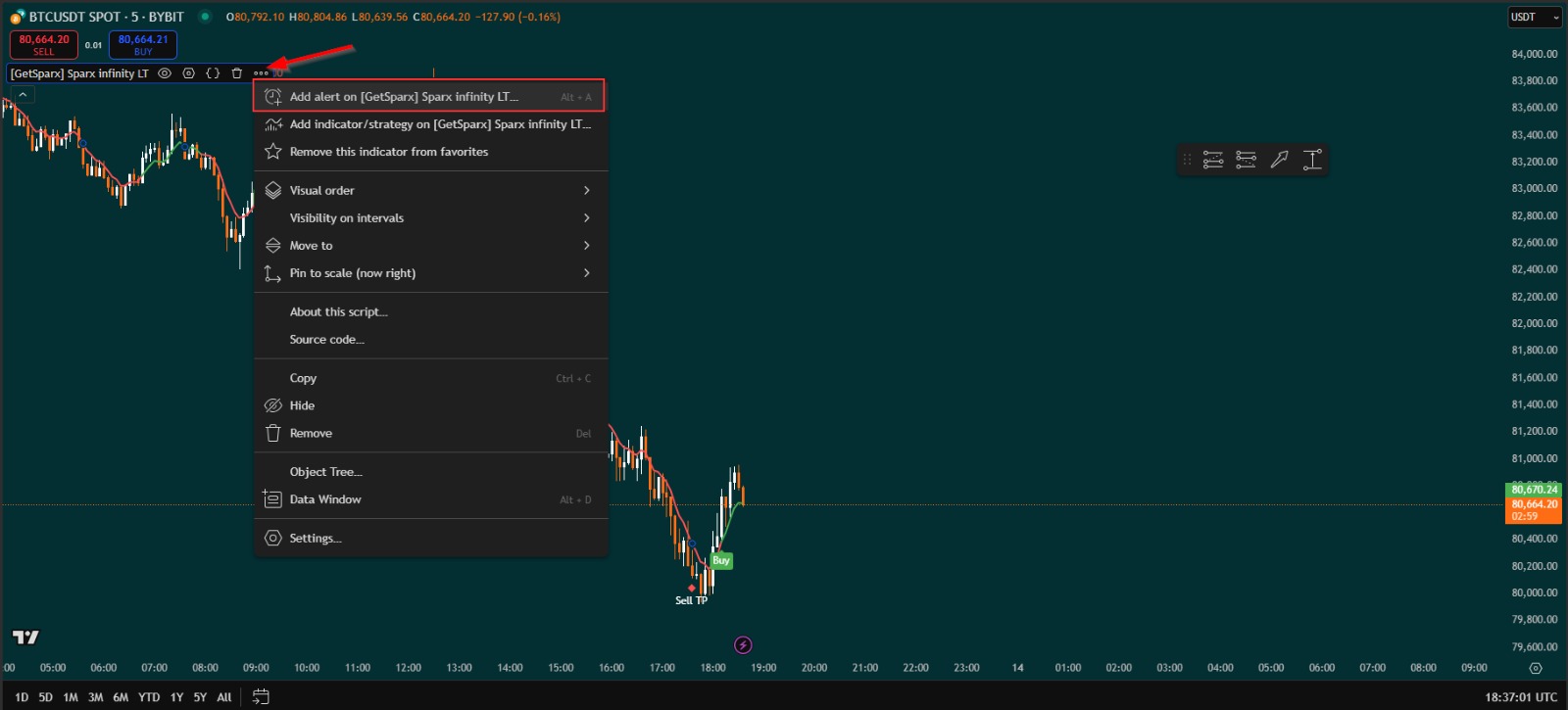
1️⃣ Open TradingView and locate the Sparx Infinity Indicator on your chart.
2️⃣ Click on the three dots next to the indicator name.
3️⃣ Select 'Add Alert' from the dropdown menu.
Choosing the Alert Condition
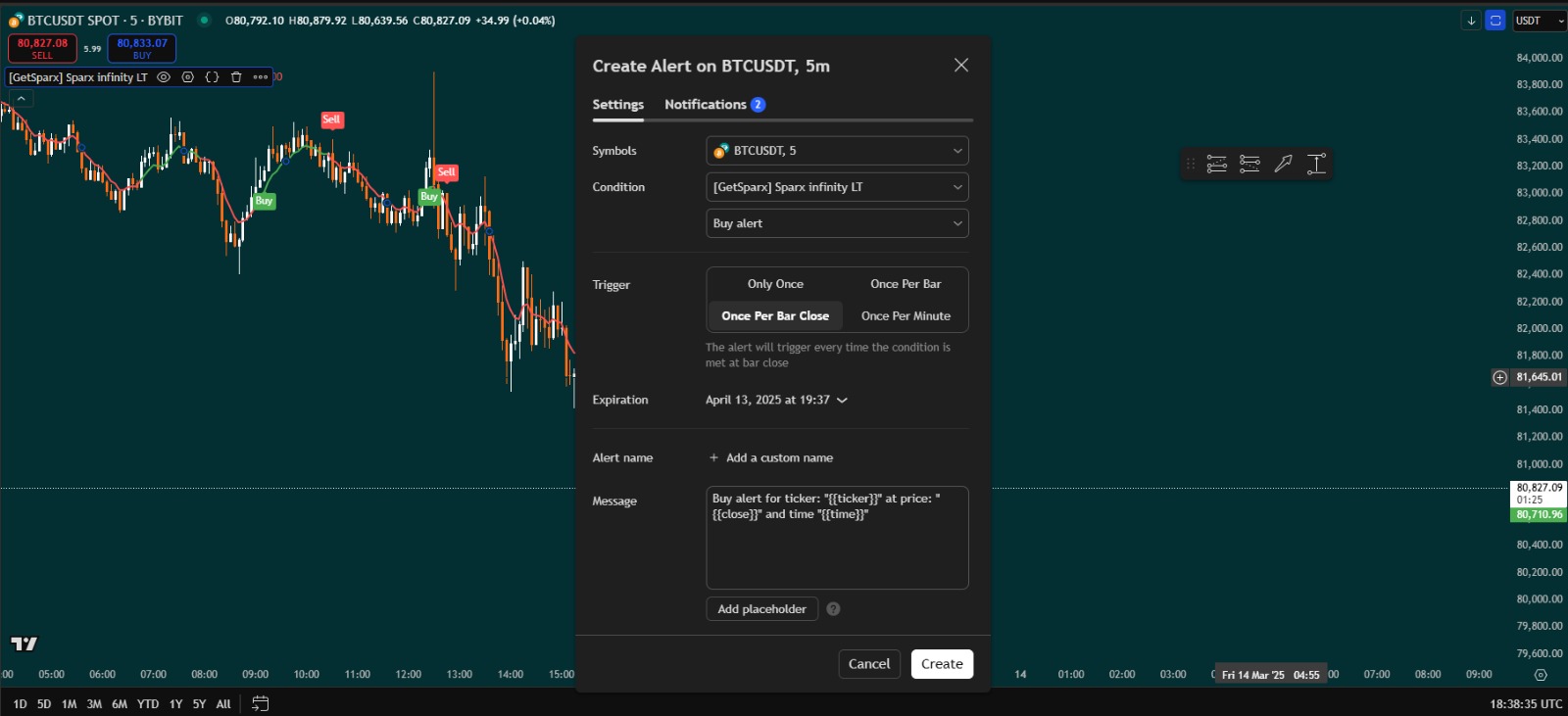
Under the Condition section, select the Sparx Infinity Indicator. You can then choose from the following alert types:
🔹 Buy Alert – Notifies you when a Buy signal appears.
🔹 Sell Alert – Notifies you when a Sell signal appears.
🔹 Buy TP Alert – Alerts you when the take profit (TP) level is hit after a Buy signal.
🔹 Sell TP Alert – Alerts you when the take profit (TP) level is hit after a Sell signal.
📌 Important: Each type of alert must be created separately.
Setting the Trigger Condition
Under Trigger, select:
✅ 'Once per bar close' – This ensures the alert is only triggered after the bar has closed, preventing false signals from forming mid-candle.
Choosing Your Notification Preferences
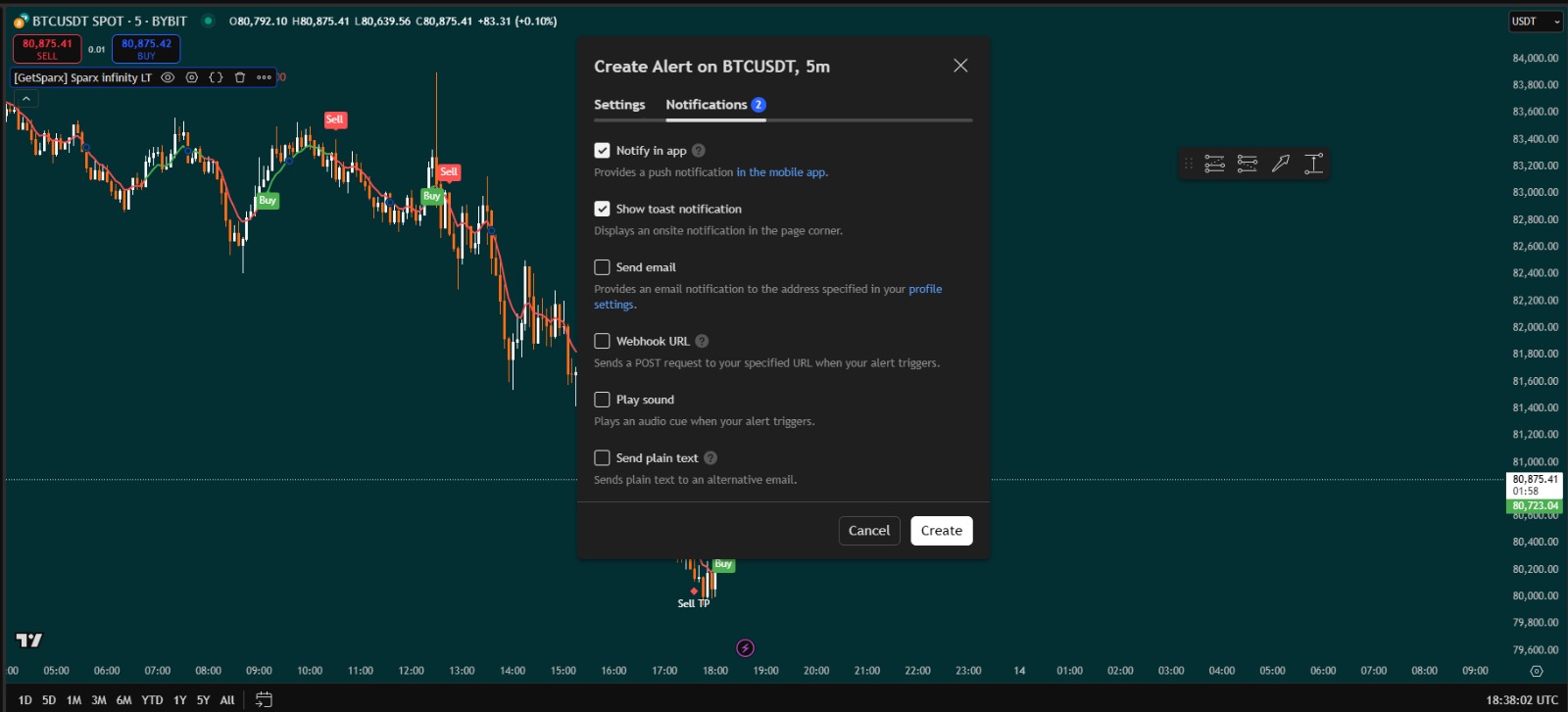
Under the Notifications tab, you can select how you want to receive your alerts:
📢 Pop-up notification in TradingView.
📩 Email notification to your inbox.
📲 Push notification to your phone (if using the TradingView app).
Once you’ve customized your settings, click 'Create' to activate your alert.
Managing Your Active Alerts
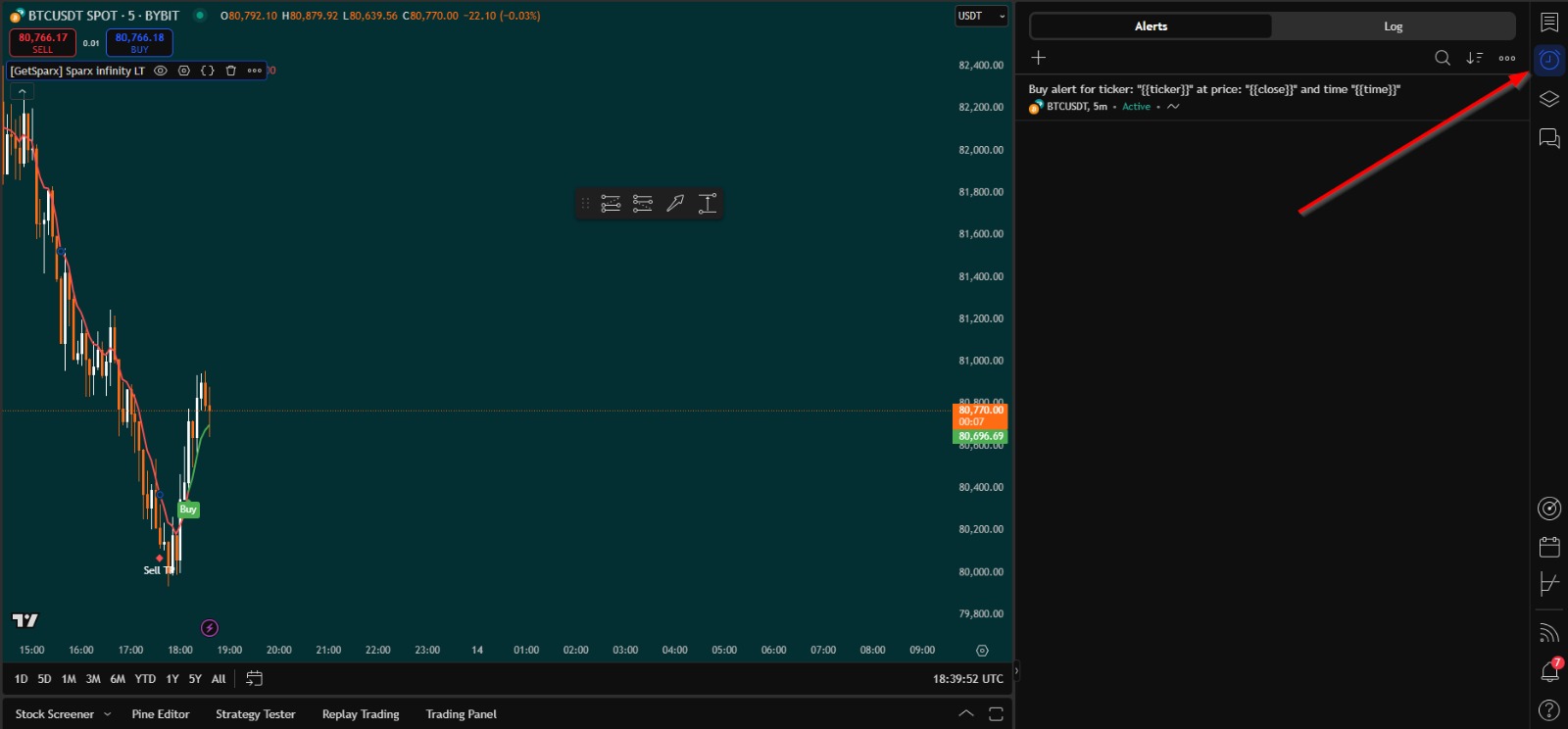
- After creating an alert, it will appear under the Alerts tab as active.
- Under the Log tab, you will see a history of triggered alerts.
- You can always edit, disable, or remove alerts as needed.
By setting up alerts, you ensure you never miss a trade opportunity, allowing you to execute buy and sell orders efficiently without constantly monitoring charts.
🚀 Upgrade to Sparx Pro now and start automating your trading decisions with real-time alerts!